Recent improvements to Solid Takeoff, month by month. Many of them started as a request from someone using it, so if something is in your way, tell us.
October 2026
Light and Dark, measuring in your own units, turning sideways drawings the right way up, and safer saving.
SolidTakeoff now comes in Light as well as Dark, so you can pick whichever is easier on your eyes. Your choice is saved to your account and follows you to every device. Dark stays the default, and switching never changes your drawings or measurements.
1.Use the sun and moon switch at the top of the app, beside your account.
2.In the editor, open Display settings (the gear) and choose Dark or Light under Appearance.
Pick the measurement system your new drawings start in: metres and square metres, or feet and inches and square feet. It follows you to every device. Drawings you've already measured keep their own units, and a teammate who works in the other system doesn't change a shared drawing.
1.Open the account menu at the top right of the app (your email address, or your initial on a phone) and choose Your account.
2.Under Measurement system, choose Metric or Imperial and press Save preference.
The scale window now lists the architectural scales 1/16", 1/8", 3/16", 1/4", 3/8", 1/2", 3/4" and 1" = 1'-0", and the engineering scales 1" = 10', 20', 30', 40', 50', 60', 100' and 200'. Each one is an exact ratio, so 1/4" = 1'-0" is 1:48, and on a drawing in feet or inches the scale button shows it the way it's printed on the sheet.
1.Open a drawing and press the scale button in the bottom bar (it reads Set scale until the page has a scale), or press S.
2.Pick the scale printed on the sheet. On a metric drawing, press US scales… to see them.
Press Detect in the scale window and Solid Takeoff suggests a scale for the page, from the scale bar, a labelled dimension or the title block. It now runs on a newer AI model. Always check the scale it suggests against a dimension you know before you measure.
Plans drawn landscape or scanned upside down can now be turned without touching the file. Your measurements stay exactly where you drew them, each page turns on its own, and shared links and PDF exports come out the same way round. The original file never changes, and on Free it doesn't count as a new upload.
1.Press ⟳ in the bottom bar, or R, to turn the page a quarter turn clockwise.
One corner slightly out no longer means deleting the shape and tracing it again. Areas, shades and lengths can be reshaped point by point, and undo works as normal.
1.With the Select tool, click an area, shade or length to show its corners.
2.Drag a corner to move it, drag the + halfway along a side to add one, or double-click a corner to remove it.
Exporting an annotated PDF now asks which pages to include: All pages, This page, or Choose… to tick them in a grid. The summary sheet only counts what's in the file, and the file name says which pages it holds.
Drawing sets that arrive as one PDF per sheet go in together, in name order, with each new page named after its file and a progress panel while it works. A file that can't be read is skipped and named, and the rest still go in. On Free, pages added this way don't count as new uploads.
1.Click the page number in the bottom bar.
2.Choose Add pages from files… and pick all the files.
If a drawing doesn't load properly, Solid Takeoff now says so and saves nothing, so an empty screen can't be saved over your takeoff. If everything on a drawing suddenly disappears, saving stops and one button puts it back. And new measurements that hadn't saved when a tab closed are kept in that browser, where its storage allows, and offered back the next time you open the drawing there.
Smaller improvements
•Sort projects by newest, oldest or name, 25 to a page. ()
•Bring a note or shape to the front, or send it to the back. ()
•Drag-select only picks what the box actually touches. ()
•Pinch to zoom on a phone, in the editor and on shared links, without the page refreshing. ()
•The dashboard fits on a phone, even with long project names. ()
•Switch between Solo and Team inside the app. ()
•New accounts can start straight away, without waiting for a confirmation email. ()
September 2026
Feet and inches, shading zones on a drawing, and signing it off.
Lengths can read 12' 6" instead of 12.5 ft, on the drawing, in the conditions panel, on the legend and in your exports. Areas stay in square feet, so your quantities don't move, and you can switch back whenever you like.
1.Open Display settings (the gear in the top right of the editor) and set Display unit to ft + in.
2.Decimal places sets how fine the fractions go: whole inches, eighths, sixteenths or thirty-seconds.
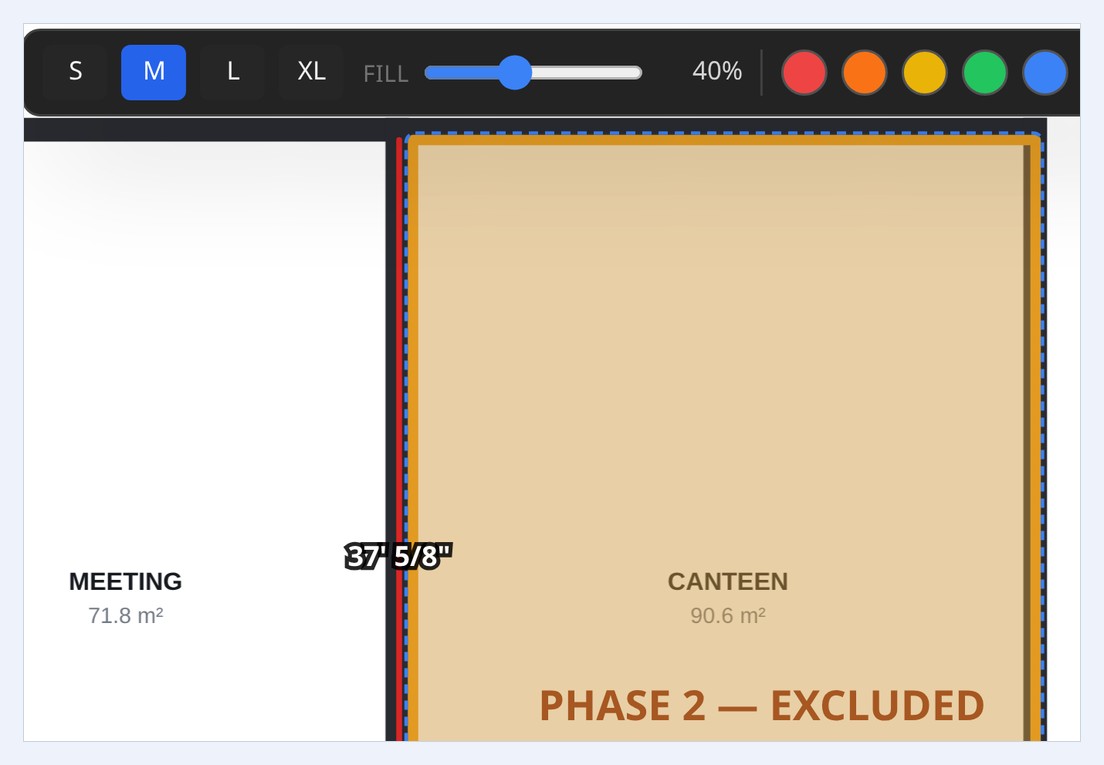
Mark what's yours, what's phase two or what's out of scope. Trace the outline and it snaps shut on the point you started from, and you can set the fill anywhere from a light wash to fully solid. It looks the same on screen, in the PDF and on a shared link.
1.Pick Shade from the Markup menu.
2.Trace the outline and click back on the first point.
Live ·Setting it up is free; placing it is on Solo and Team
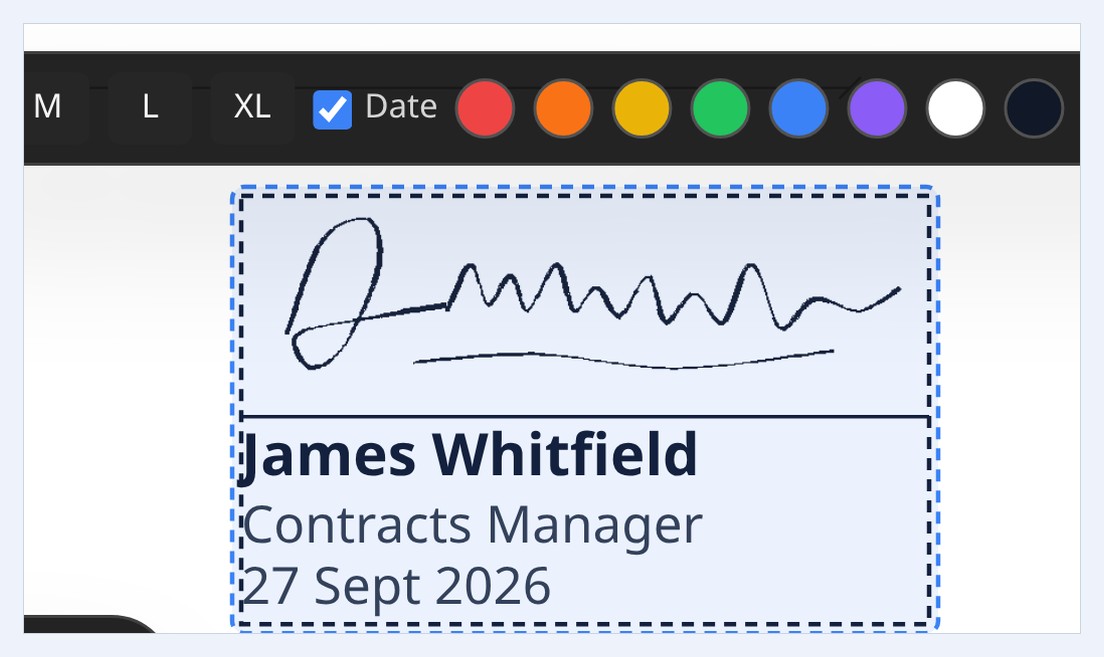
Draw your signature once, with a mouse, trackpad or finger, and stamp it on any drawing with your name, your title or company, and the date. It's yours alone: nobody else in your workspace can sign as you. Four sizes, and the date can be switched off.
1.Set it up under Account, or the first time you pick the Sign tool.
Smaller improvements
•Drawings over 10 MB can be uploaded again, after a fault earlier in September stopped them. ()
•Protected PDFs, such as consultant-issued drawings, no longer export blank. ()
•4 ft batten symbols, horizontal and vertical. ()
•The What's new note can be reopened any time from the ? menu. ()
•Delete your own account from Your account, without having to email us. ()
August 2026
Version history on every drawing, a Zoom tool, and copying a drawing to price an option.
Live ·Full timeline on Solo and Team; one step back on Free
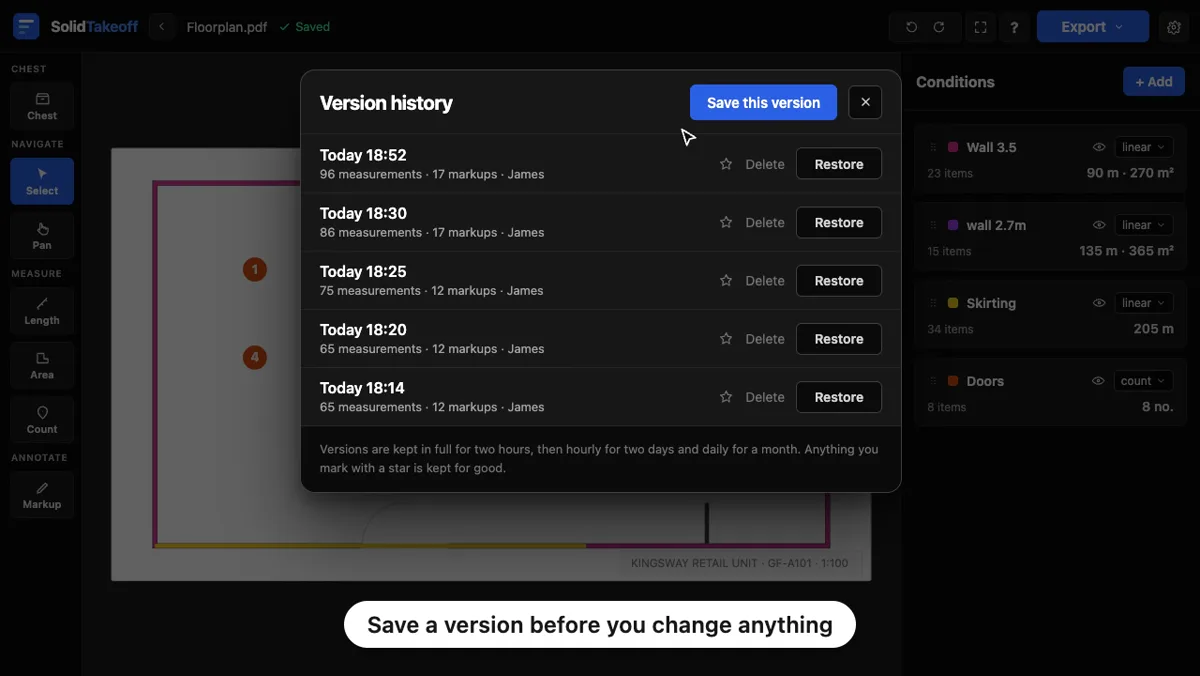
Every drawing keeps a timeline of itself: a version every few minutes while you work, thinned to hourly and then daily, for 30 days. Go back to an earlier version in one click, and because restoring saves what's on screen first, a restore you didn't mean can be undone too. Mark the version you issued ("Issued to the client") and it's kept beyond the 30 days, up to 25 marked versions per drawing.
1.Open Version history from the ? menu in the editor.
Get straight to a detail: drag a box round it and it fills the screen. While Zoom is selected the mouse wheel zooms on its own; with every other tool the wheel scrolls as usual, so it can't knock your view mid-measurement.
1.Pick Zoom, or press Z.
2.Click to zoom in, Alt-click (Option-click on a Mac) to zoom out, or drag a box.
Duplicate a drawing with every measurement, condition and note, then change the copy without tracing anything again. It's a real separate copy, so deleting one never affects the other, and on Free a duplicate doesn't count as a new upload.
1.Open the ⋯ menu beside a drawing in the project and choose Duplicate.
Editing a text box or callout now happens in the note itself, so the words appear where you're typing. A small bar sets the text size, colour and box fill, including no fill at all so the drawing shows through.
Smaller improvements
•Folders for conditions, and search the conditions list as you type. ()
•Drag a condition onto a folder to file it. ()
•Rename a folder of conditions, or hide everything in it with the eye on its header. ()
•Select and copy text from a PDF on desktop, under Navigate. ()
•Drag the bottom bar out of the way when it covers what you're measuring. ()
•A long run is no longer chopped into pieces while you trace it. ()
•Pick any colour with a hex code, and Cmd/Ctrl-click to select several markups. ()